Branding
Radius ships with its own logo and icon set so a fresh install looks finished before anyone has uploaded anything. They are defaults, not fixtures: the moment a site owner uploads their own under Settings → General, the uploaded file wins everywhere.
Uploading your own
Settings → General:
| Field | Used for |
|---|---|
| Logo | Light backgrounds — the default everywhere |
| Logo for dark backgrounds | A light-coloured version, for dark surfaces |
| Favicon | The browser tab |
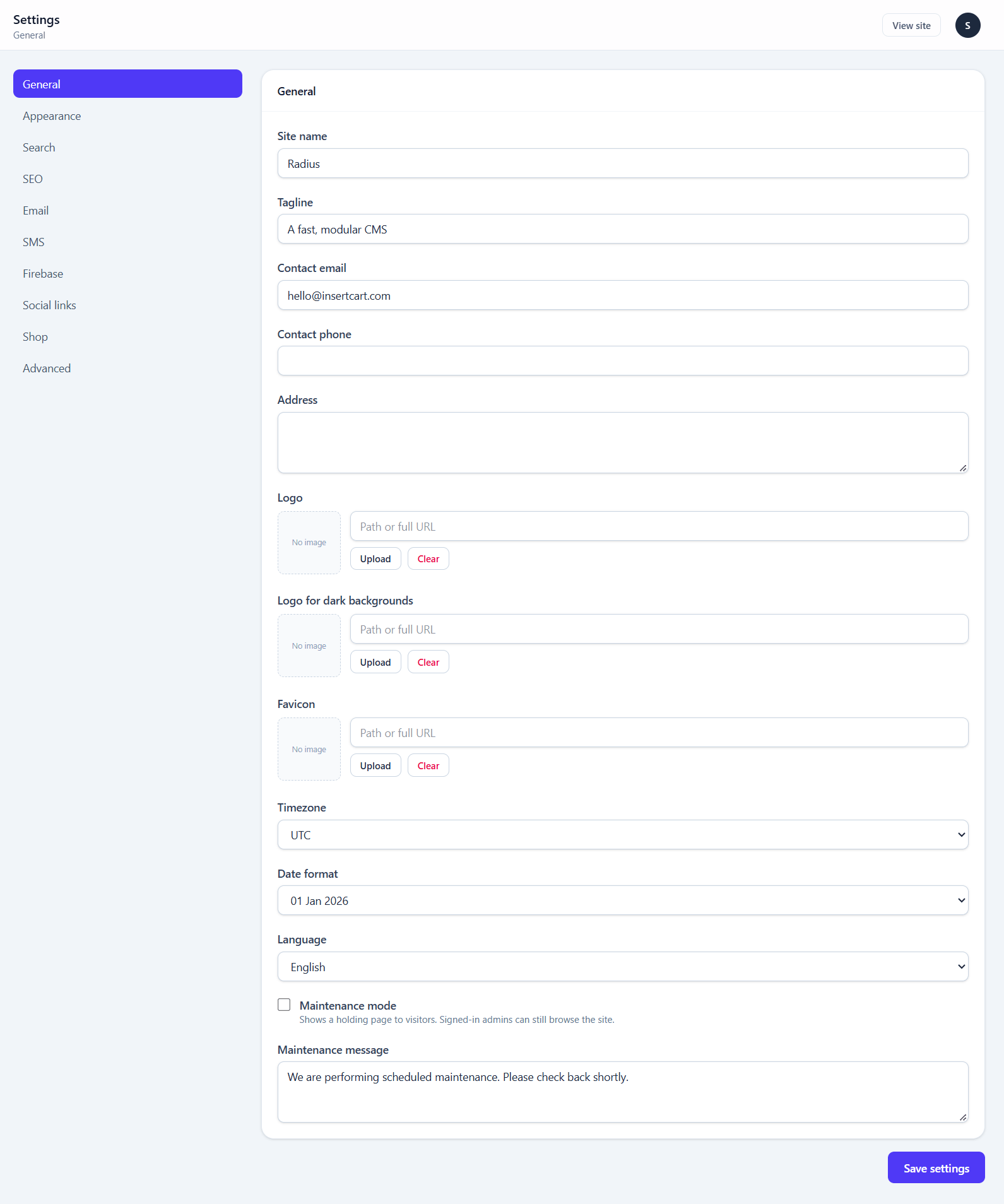
You only need the second logo if your first one disappears on a dark surface. It falls back to your ordinary logo, so leaving it empty is fine.
The two inks
This is the one naming convention worth reading carefully.
-light describes the artwork, not the background. The light files are white, and they are the ones to put on a dark surface.
| Surface | Use |
|---|---|
| White, pale slate | logo, favicon |
| Dark, slate-900 | logo_light, favicon_light |
The dark-ink files are the default because most surfaces in the product are pale.
Where the shipped files live
| File | Ink | Used for |
|---|---|---|
public/images/radius-logo.png | dark | Default site logo (1271×1051) |
public/images/radius-logo-small.png | dark | Same mark at 444×357 |
public/images/radius-logo-light.png | white | Dark backgrounds |
public/images/radius-logo-small-light.png | white | Dark backgrounds, small |
public/favicon.ico | dark | The bare /favicon.ico browsers request unprompted |
public/favicon/ | dark | Full icon set plus site.webmanifest |
public/favicon-light/ | white | The same set for browsers in dark mode |
Placing a logo in a view
Views do not read setting('site_logo') and do not pick an ink themselves. They use one component, which names the background:
<x-site-logo class="h-10 w-auto" />             {{-- follows the colour scheme --}}
<x-site-logo on="light" class="h-10 w-auto" />  {{-- surface is always pale --}}
<x-site-logo on="dark" small class="h-8" />     {{-- surface is always dark --}}
Naming the background rather than the ink is deliberate: whoever writes the tag can see the background. They cannot see which of four files is currently winning.
on="auto" resolves through the Color scheme setting. On Always light or Always dark the choice is made server-side; on Follow visitor system setting the component emits a <picture> with a prefers-color-scheme source, because the server never learns what the visitor's browser prefers.
Where the bundled views land
| Surface | Background | Ink |
|---|---|---|
| Admin sidebar | bg-slate-900, always | on="dark" |
| Default theme header | bg-white/95, always | on="light" |
| Storefront header and footer | --sf-accent yellow, always | on="light" |
| Sign-in and setup wizard | bg-slate-100 | on="light" |
| Builder logo widget | wherever it is dropped | editor's choice, defaults to auto |
The bundled themes are light-only, so they ask for on="light" explicitly. A theme that does implement dark mode should use auto.
Helpers
site_logo_url($small = false)        // dark ink: upload, else shipped
site_logo_light_url($small = false)  // white ink: light upload, else upload, else shipped
site_favicon_url()                   // upload, else shipped
site_favicon_light_url()             // the dark-mode favicon
brand_asset('favicon_png_light')     // a shipped file, never an upload
site_color_scheme()                  // 'light' | 'dark' | 'system'
site_logo_is_custom()
Note the fallback order in site_logo_light_url(): it falls back to the owner's ordinary logo before it falls back to the shipped one. A site that uploaded one logo and never made a white version is better served by their own mark at poor contrast than by somebody else's brand turning up in their admin panel.
Favicons
Icon tags live in one partial:
resources/views/partials/favicon.blade.phpIt is included by both themes, the admin panel, the installer, the auth pages and the error pages. Include it in your own theme's <head>:
@include('partials.favicon')That gets the .ico, the SVG, the Apple touch icon, the web manifest and the dark-mode variants in one line.
The push notification icon is a PNG, not the .ico
Browsers draw the notification icon at 192px and several will not render an .ico there at all. That is why push_icon points at favicon/web-app-manifest-192x192.png.
Rebranding the product
For a fork or a white-label build, no view needs editing. Either replace the files in place, or repoint the brand block in config/cms.php:
'brand' => [
    'logo' => 'images/my-logo.png',
    'logo_light' => 'images/my-logo-light.png',
    'favicon' => 'favicon/favicon.ico',
    'favicon_light' => 'favicon-light/favicon.ico',
    // ...
],
Paths are relative to the web root and resolved through asset(), so they keep working whether the document root points at public/ or at the project folder.
Renaming the product
config/cms.php:
'name' => 'Radius',
'version' => '1.1.2',
name appears in the admin footer and the installer. Buyers may rebrand freely — the MIT licence permits it.
Do not change version when rebranding
It is what the updater compares against a release manifest. Changing it breaks update checking. See Updates.
For agencies
The practical white-label checklist:
- Replace the brand files, or repoint the
brandblock inconfig/cms.php - Set
nameinconfig/cms.php - Set
CMS_ADMIN_PREFIXin.envto something client-specific - Point
CMS_UPDATE_URLat your own manifest, or unset it to disable update checks entirely - Upload the client's own logo under Settings → General — which overrides everything above for the public site
Steps 1–4 brand the product; step 5 is the client's own site identity. They are independent, which is what lets you hand over a panel that looks like yours running a site that looks like theirs.