

Visual builder
A drag-and-drop editor for designing pages without writing HTML. It is built into Radius rather than bolted on, and it does not replace your theme.
| Screen | Route | Minimum role |
|---|---|---|
| Builder overview | /admin/builder | Editor |
| The editor | /admin/builder/edit/{type}/{id} | Editor |
| Preview | /admin/builder/preview/{type}/{id} | Editor |
| Revision history | /admin/builder/{layout}/revisions | Editor |
What makes it different
Most visual builders ship a small application to every visitor: a stack of scripts that assembles the page in the reader's browser.
Radius renders on the server. The builder produces a layout tree, the server compiles it to Blade, and what goes out is plain HTML with one stylesheet. No JavaScript is required to read a built page — which is what makes the output fast, indexable, and readable on a bad connection.
Opening the editor
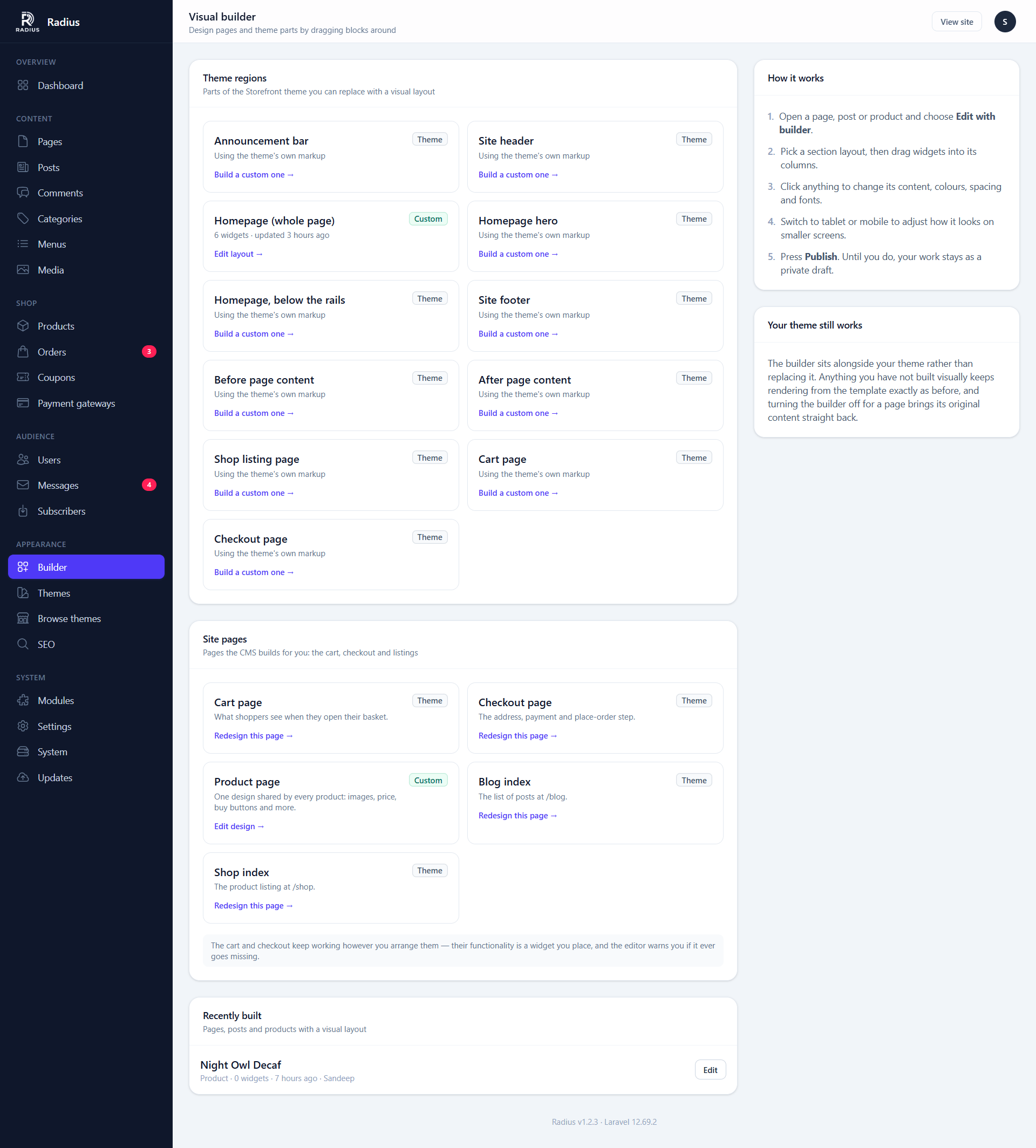
Either from this screen, or from the Edit with builder button on any page or post.
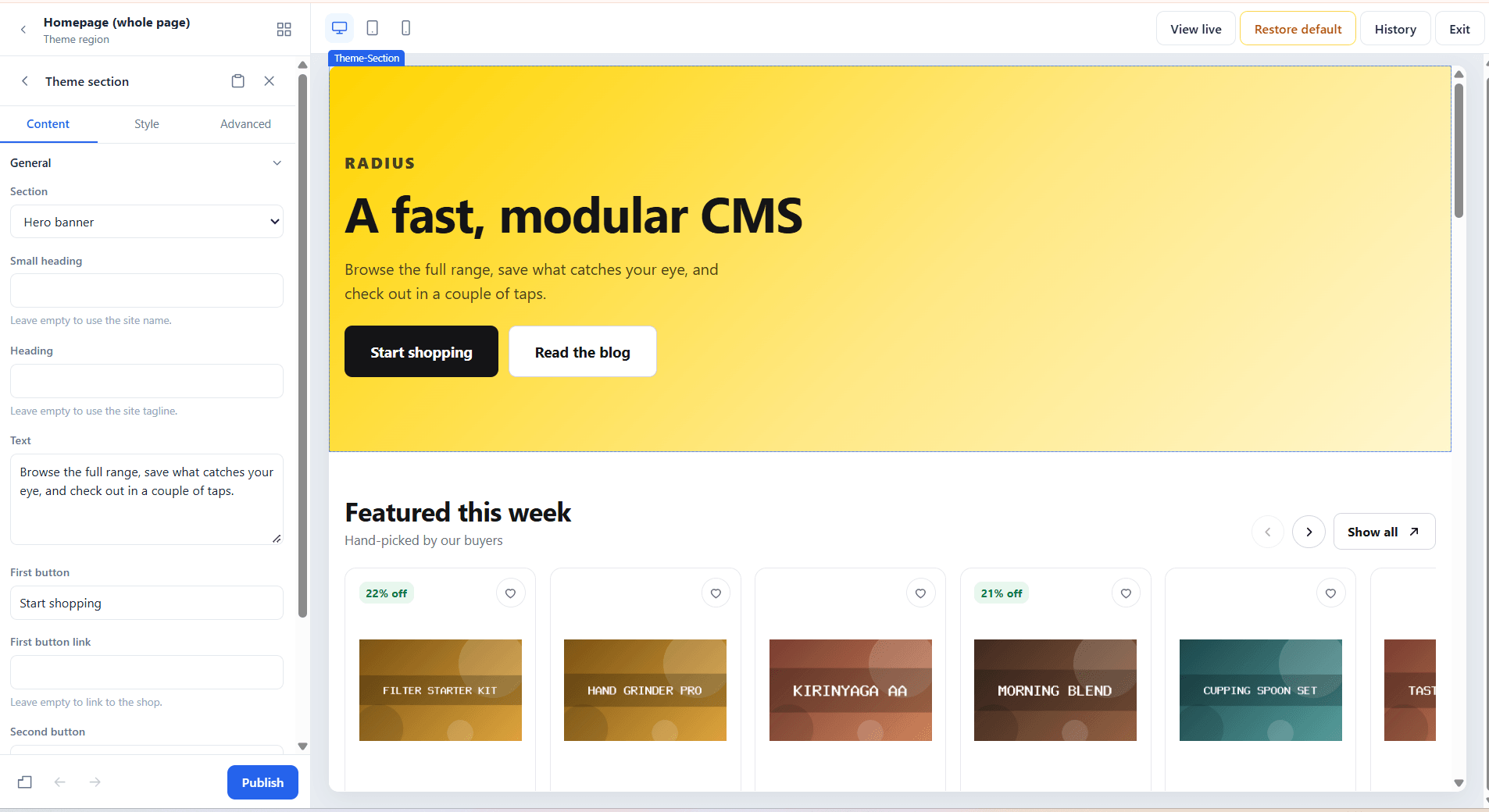
Three areas:
| Area | Contains |
|---|---|
| Left | The widget palette, grouped by category, and the layout tree |
| Centre | The canvas — the page as it will render |
| Right | The settings panel for whatever is selected |
The layout model
A layout is a tree, three levels deep:
Section
└── Column
    └── Widget
Sections hold columns, columns hold widgets. Each level has its own settings panel with Content, Style and Advanced tabs.
| Level | Owns |
|---|---|
| Section | Full-width band: background, padding, width, wrapper tag |
| Column | Horizontal division: width per breakpoint, vertical alignment |
| Widget | One piece of content |
A tree is capped at 2000 nodes and 6 levels deep, so a crafted request cannot make the renderer walk an enormous structure.
Why the editor feels immediate
Controls are split by what they affect, which is the reason dragging a colour slider does not wait on the network:
- Style controls (colour, spacing, typography, borders) declare a CSS mapping, so the editor rewrites the preview's stylesheet in place. Instant, no server round trip.
- Content controls re-render only the element that changed.
- Structural edits re-render the canvas, which is rare enough not to be felt.
The server recompiles the authoritative stylesheet on publish.
Drafts and publishing
Work autosaves as a private draft. Nothing reaches the public site until you press Publish.
That means you can leave a half-finished redesign sitting on a live page for a week without anybody seeing it.
Revision history
Every publish stores a revision. The last 25 are kept, and any one can be restored.
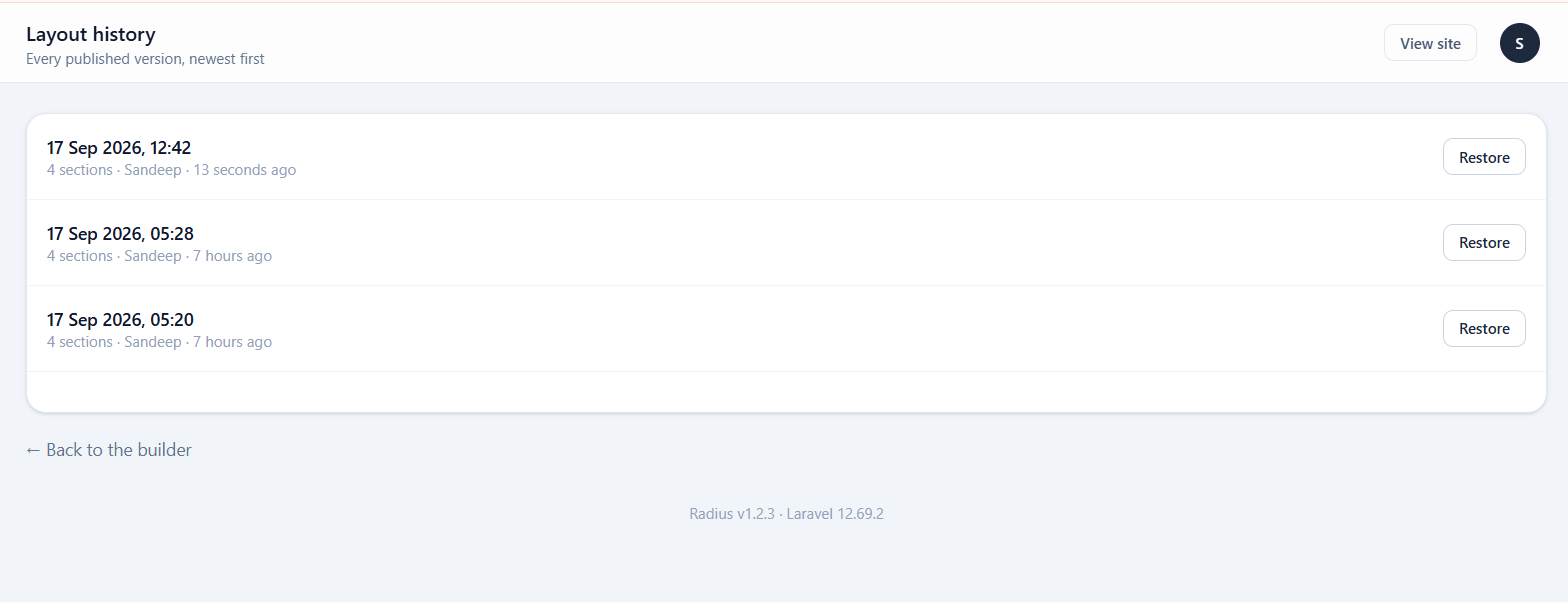
Restoring a revision is itself a publish, so it appears in the history too — you can undo an undo.
Responsive design
Switch between desktop, tablet and mobile in the toolbar. Any control marked responsive stores a separate value per breakpoint, so mobile padding is genuinely independent of desktop padding rather than a scaled guess.
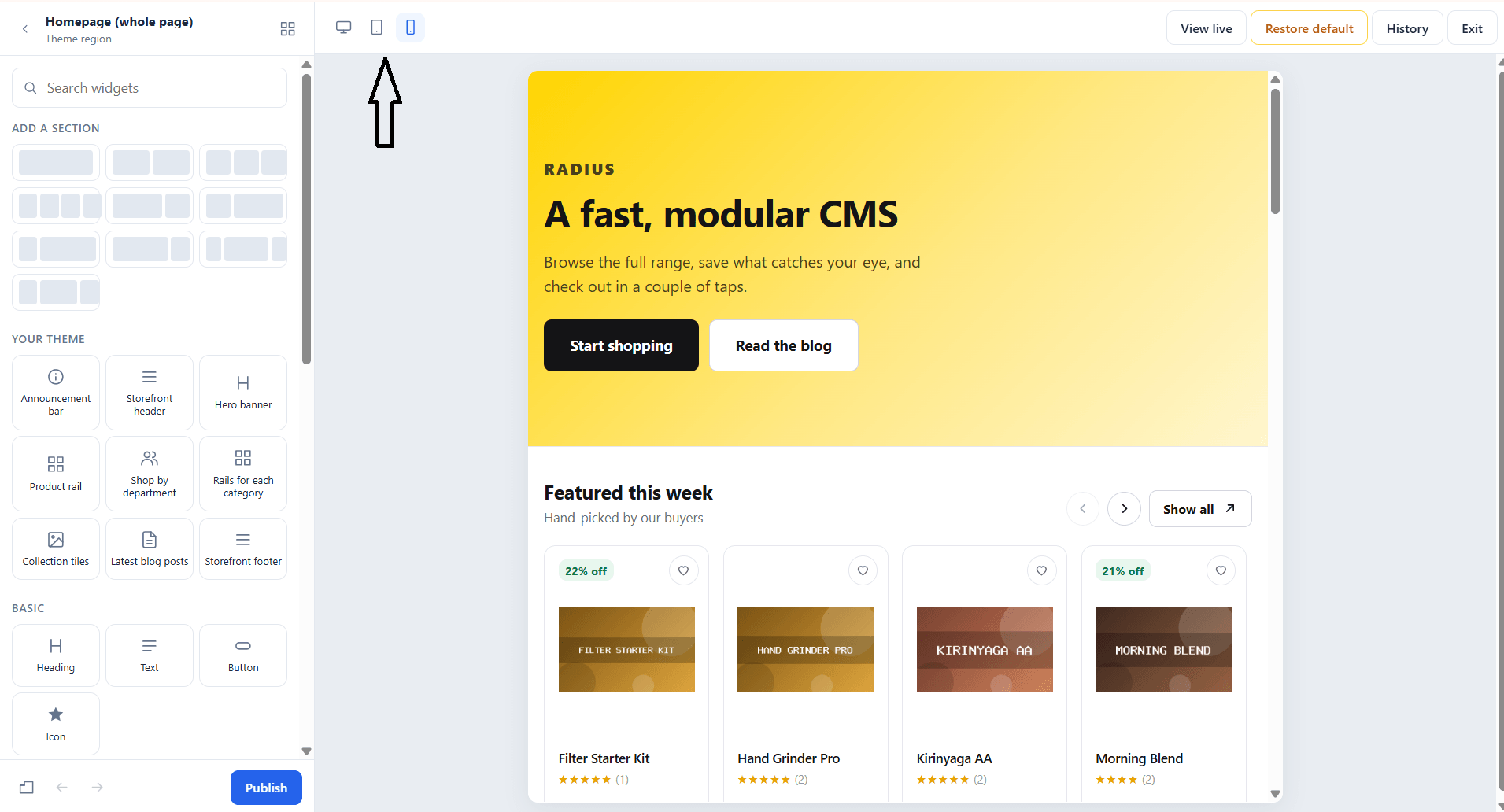
Work desktop-first, then check the other two. A value set at desktop cascades down until a narrower breakpoint overrides it.
Design tokens
Colours picked from the palette are stored as var(--cb-color-primary) rather than as a hex code. Change a token later and everything using it follows, instead of leaving one-off hex codes scattered through forty sections.
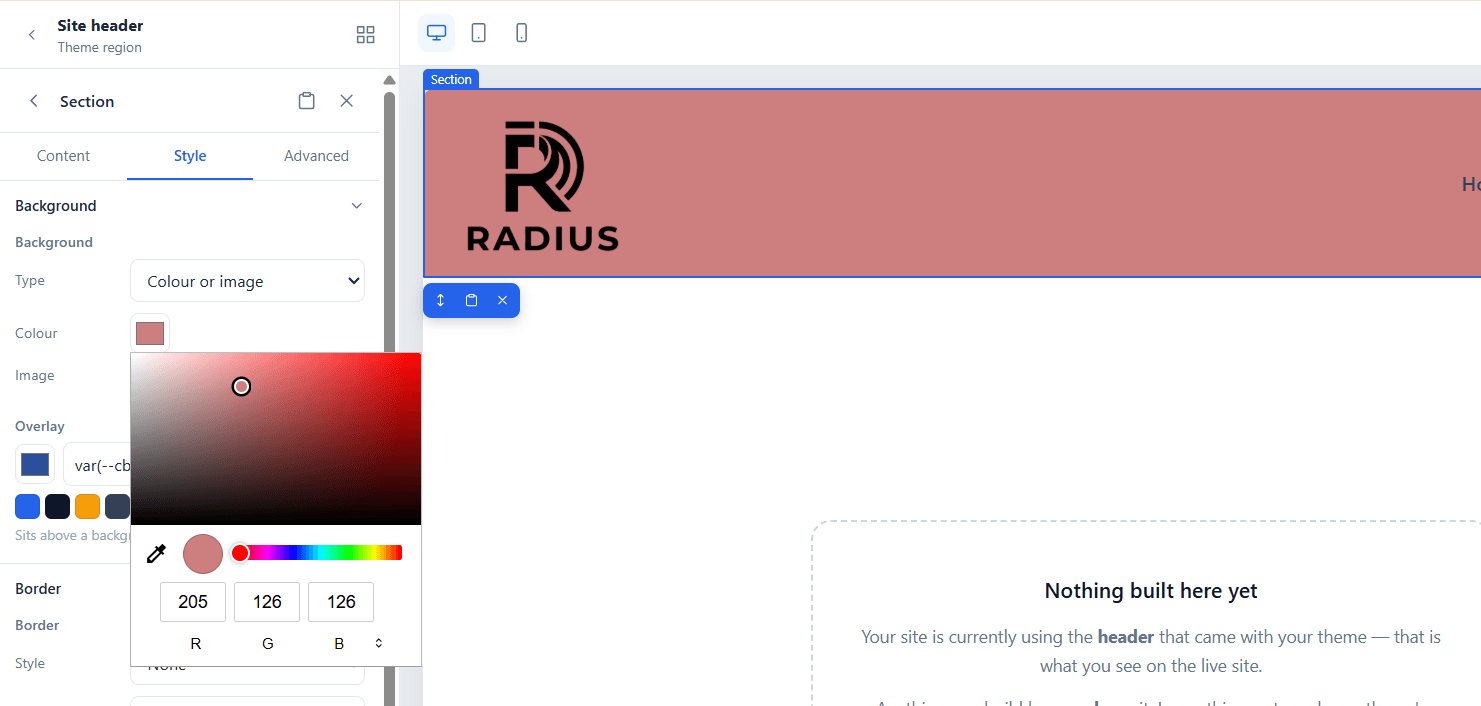
This is the single most useful habit to adopt early. Picking a raw hex colour works, but it is the thing you will regret when the brand colour changes.
Saved sections
Built a hero you want on six pages? Save the section once and drop it in anywhere else.
To save a section:
- In the editor, click the section, or anything inside it.
- Click the folder icon, either in the toolbar floating above the element on the canvas or at the top of the settings panel.
- Give it a name. Saving a column or widget saves the whole section it sits in.
To use it: open the Widgets panel of any layout. Your sections are listed under Saved sections, just below the column layouts. Click one to add it after the selected section (or at the end of the page), or drag it onto the canvas to place it exactly. The search box filters them by name too.
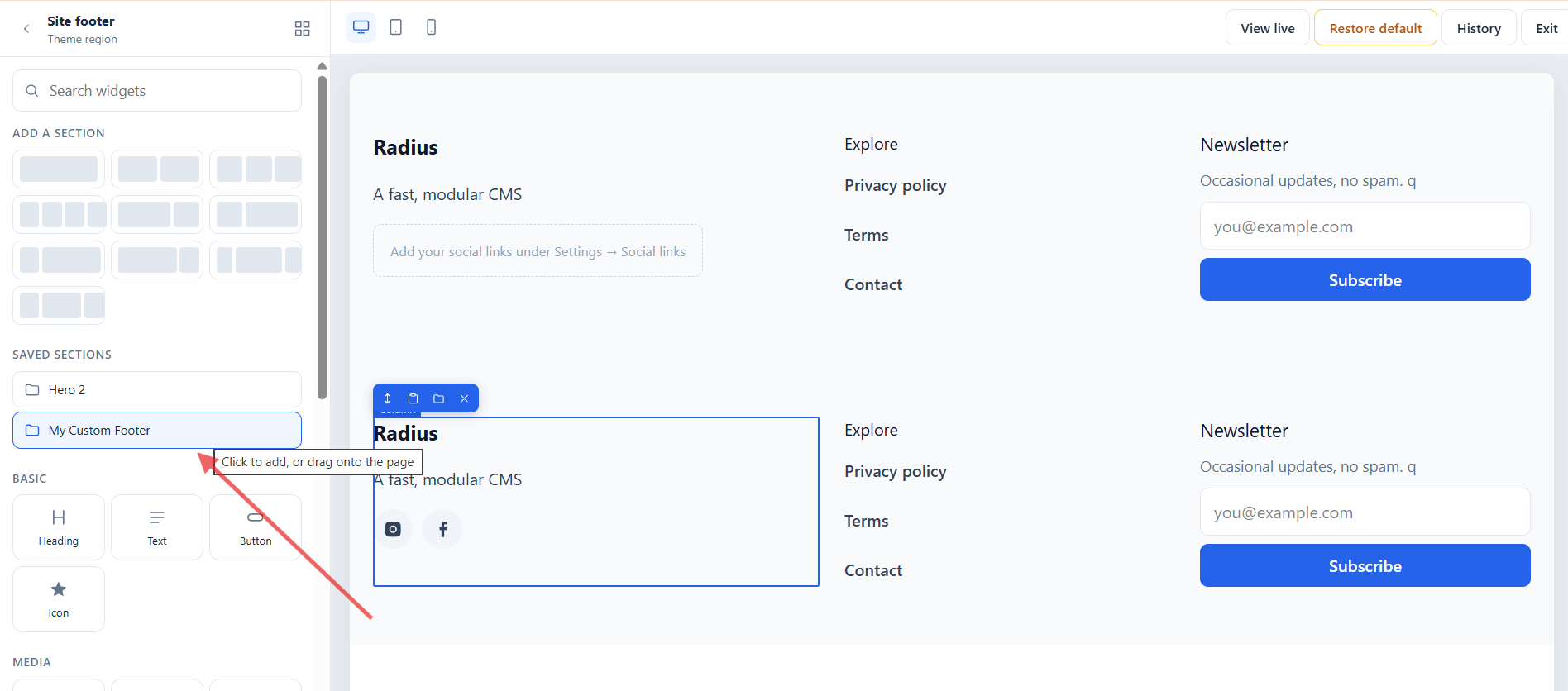
A saved section is a copy, not a link — editing it on one page does not change it on the others, or change the saved original. Inserting one is an ordinary edit: it can be undone, and it stays a draft until you publish.
To delete one, go to Builder in the admin menu and use the Saved sections card. Pages that already use it keep their copy.
Raw HTML stays admin-only
A saved section is cleaned the same way a published layout is. If an editor saves a section containing an HTML widget, the markup is sanitised, so saved sections can't be used to sneak scripts onto the site.
Keyboard shortcuts
| Keys | Action |
|---|---|
| Ctrl + Z | Undo |
| Ctrl + Shift + Z | Redo |
| Ctrl + S | Publish |
| Ctrl + D | Duplicate the selection |
On macOS, Cmd works in place of Ctrl.
Turning the builder off for a page
The switch is reversible and destroys nothing. A page whose builder layout is turned off falls straight back to its rich text content; the layout is kept, so turning it on again restores the design.
There is also Restore default on any theme region, which discards the layout and hands the region back to the theme's own markup.
Security of builder output
The builder is administrator-only, but its output still becomes a stylesheet and markup, so both are constrained:
- Settings written into CSS are stripped of anything that could close a rule or start a new one —
},;, comment markers,expression(),@import. - Element ids are validated before they become class names, so a crafted id cannot escape its selector.
hrefvalues accept onlyhttp,https,mailto,teland relative paths.javascript:anddata:URLs are dropped, including obfuscated forms likejava\tscript:.- Section wrapper tags come from a fixed allowlist; custom CSS ids and classes are stripped to safe characters.
The HTML widget is the deliberate exception — outputting raw markup is its entire purpose, and the editor says so plainly on the widget.
Next
- Widgets — what is in the palette
- Theme regions — designing headers and footers
- Building a widget — one class and one Blade view