

System health
System → System is the screen to open when something is wrong, and the screen to re-check after any hosting change.
| Screen | Route | Minimum role |
|---|---|---|
| System health | /admin/system | Administrator |
| Activity log | /admin/system/activity | Administrator |
| Application log | /admin/system/logs | Administrator |
The checklist
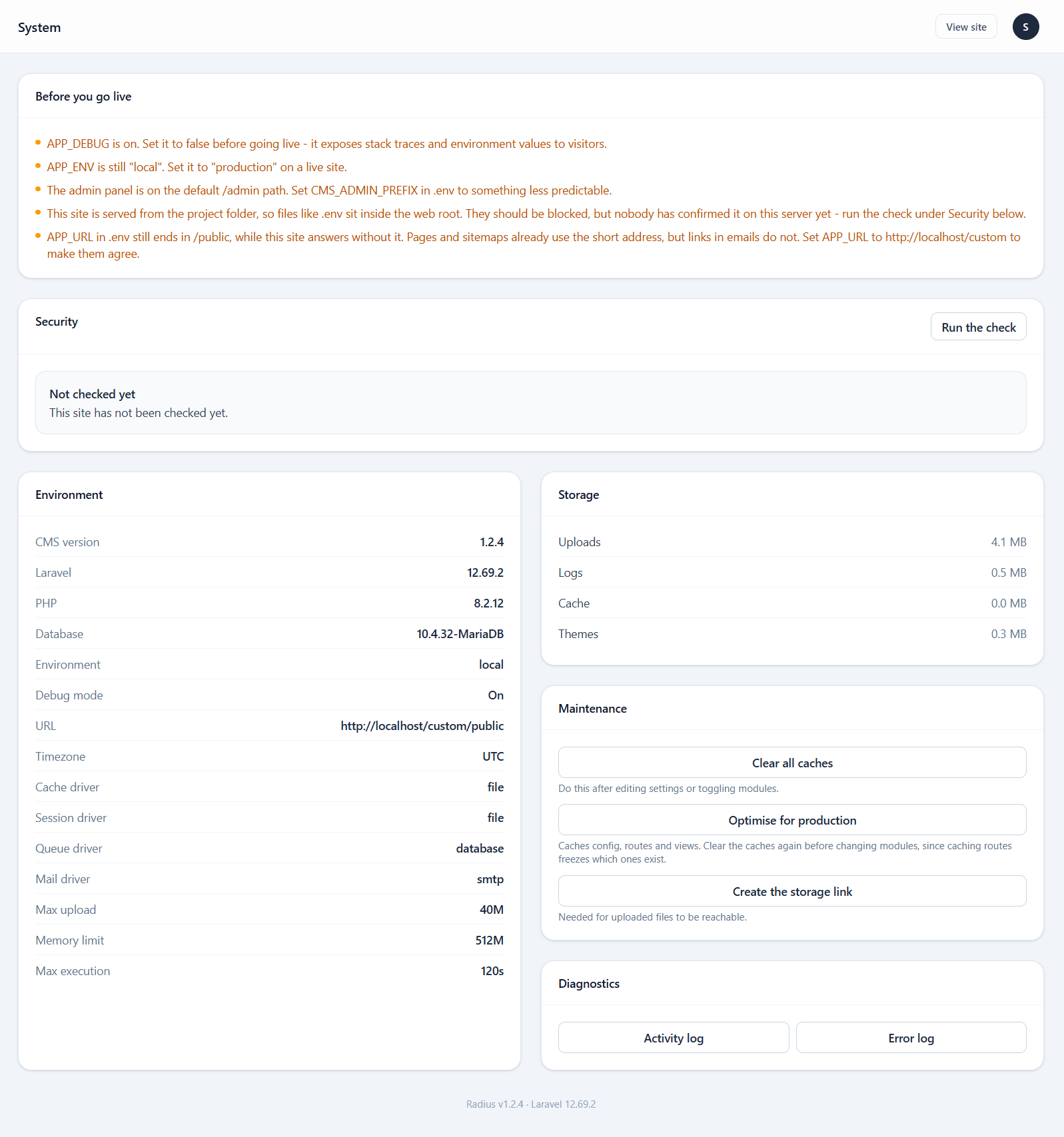
| Panel | Reports |
|---|---|
| Environment | PHP version, Laravel version, Radius version, database server |
| Extensions | Every required PHP extension, as the web server sees it |
| Writable paths | storage/, bootstrap/cache/, themes/, public/, .env |
| Configuration | Anything still misconfigured, each linking to its fix |
| Cache state | Whether config, routes and views are cached |
Use the Configuration panel as your to-do list. It flags APP_DEBUG left on, email never configured, a missing homepage, a gateway enabled with incomplete credentials, and the rest.
Extensions are reported as the web server sees them
PHP on the command line and PHP under the web server can load different configurations. This screen asks the web server, which is the one that matters. After editing php.ini, restart the web server — not just the CLI.
The exposure check
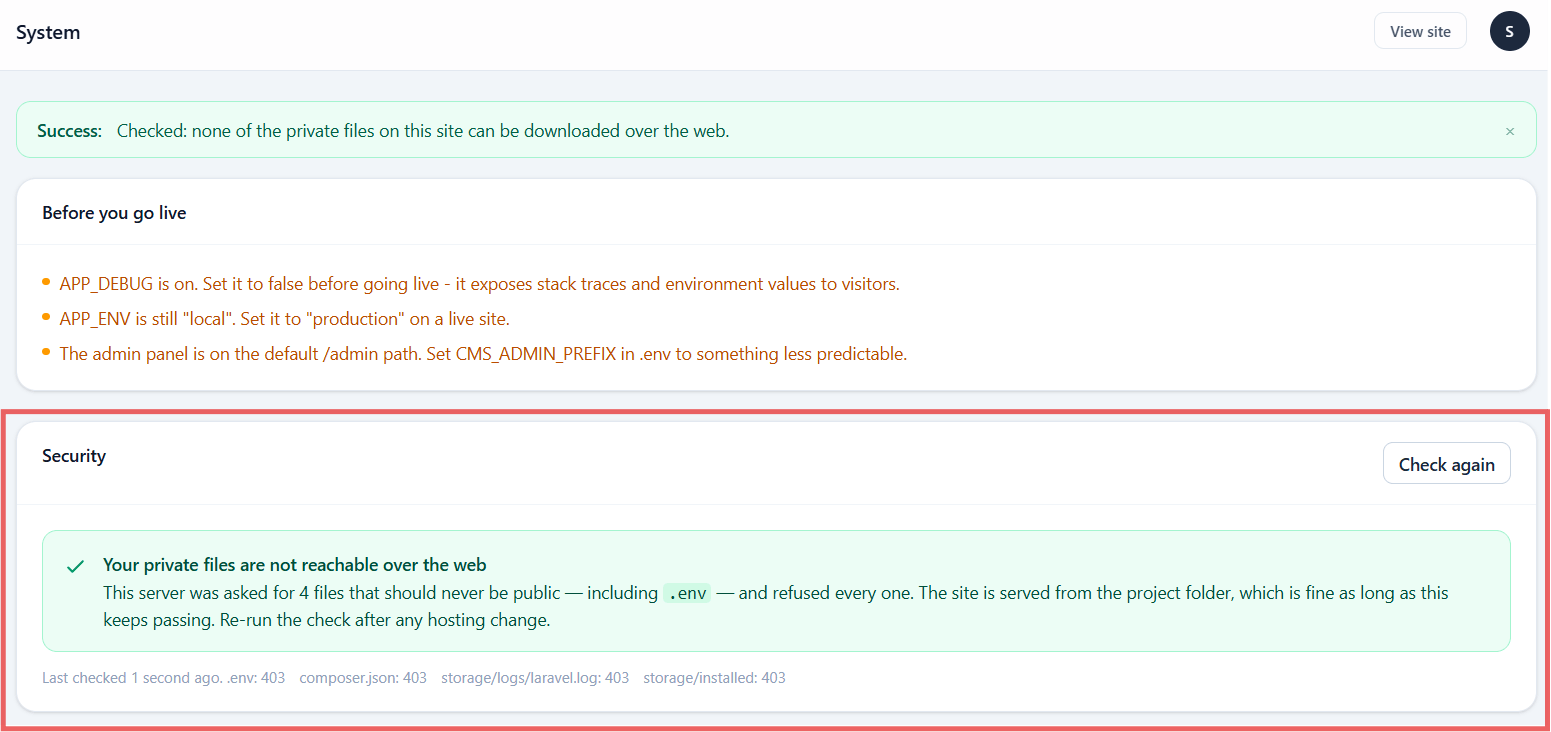
Check exposure makes your own server request its .env, composer.json, its log file and its install lock over HTTP, then reports what actually came back.
A green result means those files are genuinely unreachable on your host — not that the directory layout looks right. That distinction is the entire point: a correct-looking layout on a host that ignores .htaccess is still wide open.
Re-run it after any hosting change, migration, or control panel update.
If it finds something readable
Treat it as a live leak, not a warning.
- Fix the server configuration — see Security
- Change your database password
- Run
php artisan key:generate - Re-enter every payment gateway's credentials (the old
APP_KEYdecrypted them)
Assume anything that was readable has been read.
Maintenance tools
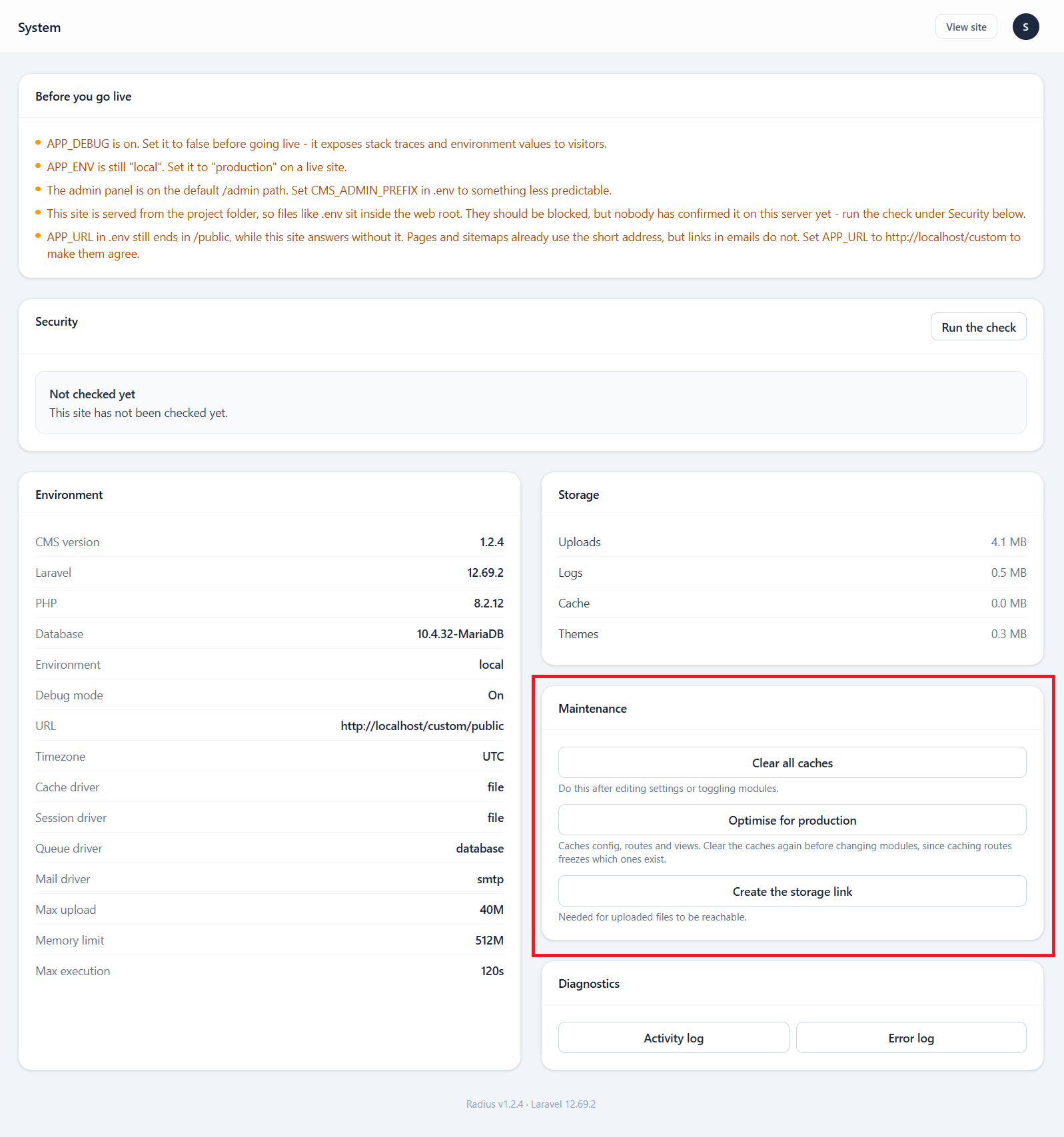
| Tool | Does | When |
|---|---|---|
| Clear all caches | Config, routes, views, application cache | After any config change, and whenever something will not update |
| Optimise for production | Caches config, routes and views | Once, on a live site you are not actively changing |
| Link storage | Recreates the public/storage symlink | When uploaded images 404 |
| Send test email | One message to your address | After configuring email |
| Send test SMS | One message | After configuring SMS |
| Send test push | One notification | After configuring Firebase |
Clear caches vs Optimise
They are opposites, and the order matters:
- Clear makes the site read live configuration. Slightly slower, always correct.
- Optimise compiles configuration and routes into cached files. Faster, and frozen until you clear it again.
Optimise freezes which routes exist
After optimising, toggling a module or changing CMS_ADMIN_PREFIX has no effect until you clear the caches. If a change is not taking, clear first and re-optimise afterwards.
When images 404
Uploaded files live in storage/app/public and are served through a symlink at public/storage. Some hosts drop symlinks when you copy files or restore a backup. Link storage recreates it.
The command-line equivalent is php artisan storage:link.
Activity log
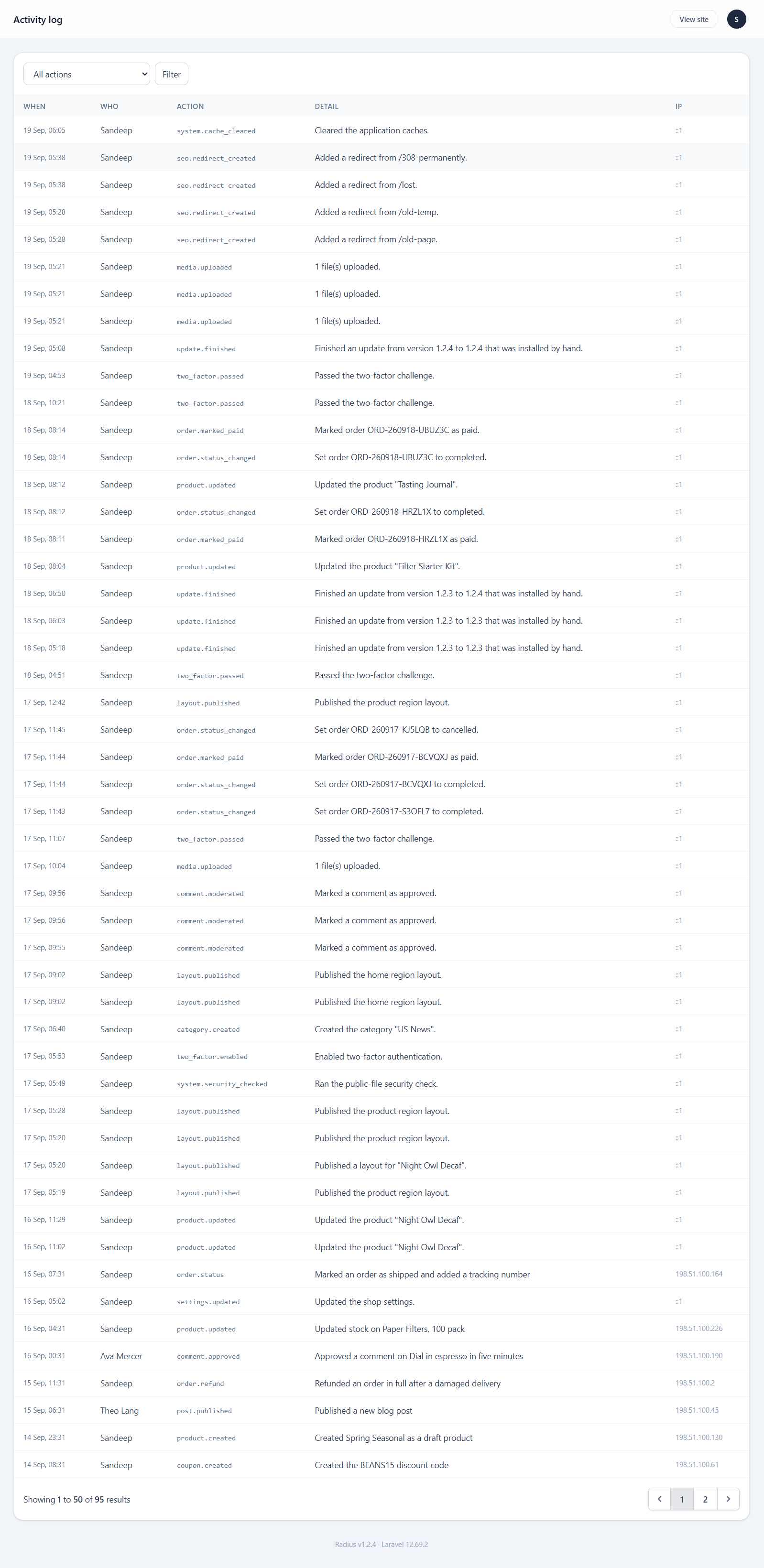
Who did what, and when. Records sign-ins, content changes, setting changes, module toggles, order status changes, refunds and updates.
Filter by user, action type and date. This is the first place to look when something changed and nobody remembers changing it.
To keep the database small, entries older than 45 days are deleted automatically. Change this under Settings → Advanced → Delete activity log entries after (days); set it to 0 to keep everything. The activity page shows the current setting with a link to it. Clean-up runs daily from the scheduler when the cron entry is set up, and otherwise the next time an admin action is logged.
Application log
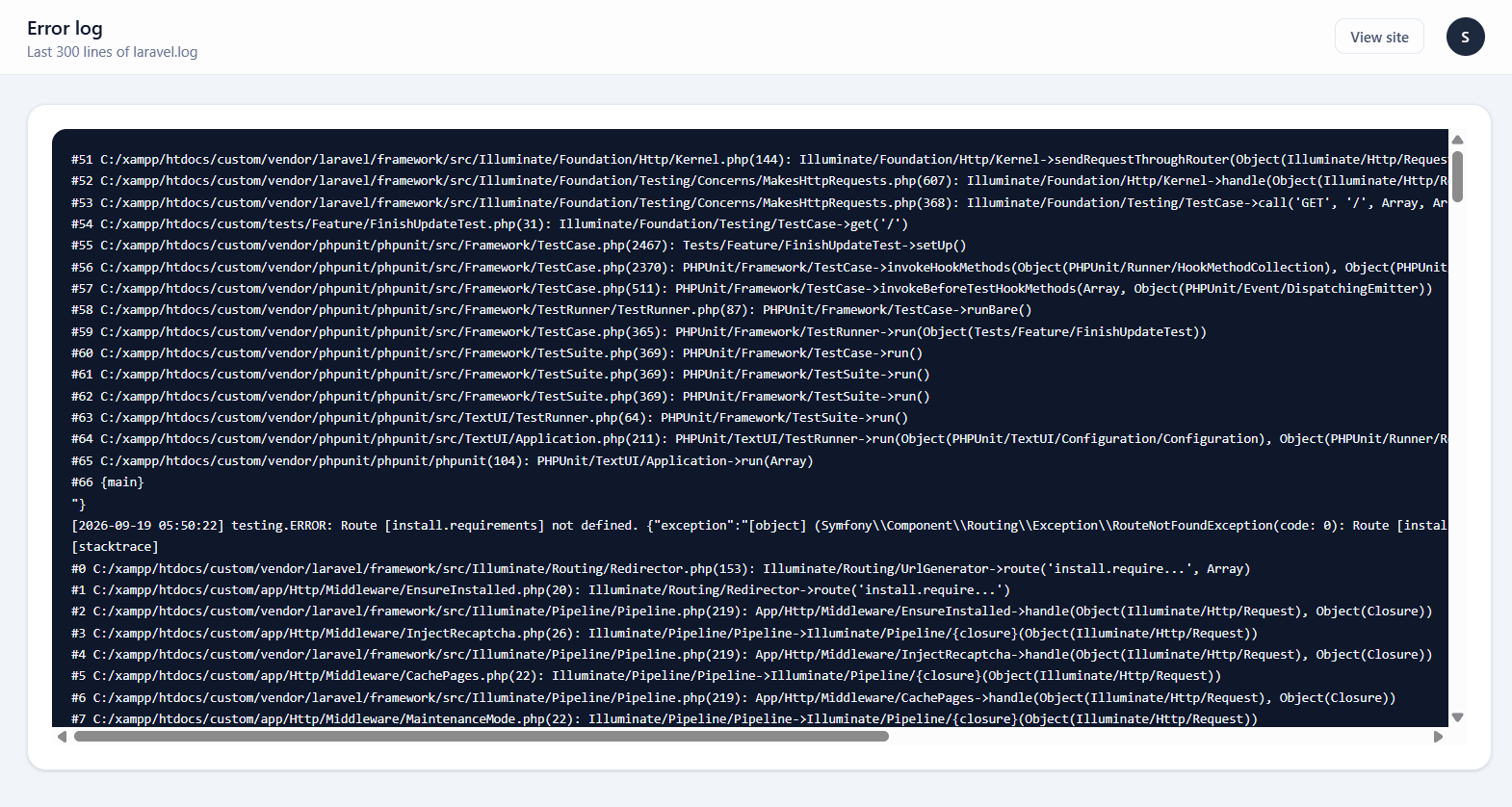
Laravel's own log, readable without FTP. Filter by level and expand an entry for its stack trace.
This is where a failed payment webhook, a mail provider rejection, or a template error ends up.
Read the log before reporting a bug
An issue report carrying the stack trace from this screen gets fixed; one saying "it doesn't work" does not. Redact anything sensitive in the trace first.
Logs are written to storage/logs/, are excluded from release archives, and are never web-readable — the exposure check verifies that last part.
Maintenance mode
Settings → General → Maintenance mode shows visitors a holding page while signed-in administrators keep browsing normally.
Use it for a content migration or a theme switch on a live site. The message is editable on the same screen.
Maintenance mode is not a deployment tool
It does not stop scheduled tasks, webhooks or cron. A payment webhook arriving during maintenance is still processed, which is what you want.